
Please Note: This article is written for users of the following Microsoft Excel versions: 97, 2000, 2002, and 2003. If you are using a later version (Excel 2007 or later), this tip may not work for you. For a version of this tip written specifically for later versions of Excel, click here: Specifying an Order for Page Printing.
When the information you have in worksheet won't fit on a single page, Excel automatically breaks it up—at row or column boundaries—and prints the information on multiple pages. You can control the order in which Excel prints pages.
For instance, let's say the information in your worksheet is both too wide and too long to fit on a single sheet. Instead, the printed material will take four pages to print. The first page printed will always be the information at the top left corner of the print area. You can control whether Excel prints the information beneath page one as page two, or the information to the right of page one as page two. Follow these steps:
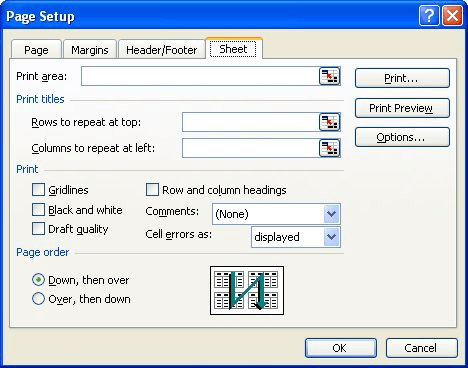
Figure 1. The Sheet tab of the Page Setup dialog box.
ExcelTips is your source for cost-effective Microsoft Excel training. This tip (2979) applies to Microsoft Excel 97, 2000, 2002, and 2003. You can find a version of this tip for the ribbon interface of Excel (Excel 2007 and later) here: Specifying an Order for Page Printing.

Professional Development Guidance! Four world-class developers offer start-to-finish guidance for building powerful, robust, and secure applications with Excel. The authors show how to consistently make the right design decisions and make the most of Excel's powerful features. Check out Professional Excel Development today!
Excel allows you to print out information in either portrait or landscape orientation, but what if you need both types of ...
Discover MoreNeed to print out comments, but in a way that you control what is included in the printout? Here's a way you can extract ...
Discover MoreNeed to print just a few pages from a group of worksheets? The easiest way to handle the task may be through a macro, as ...
Discover MoreFREE SERVICE: Get tips like this every week in ExcelTips, a free productivity newsletter. Enter your address and click "Subscribe."
There are currently no comments for this tip. (Be the first to leave your comment—just use the simple form above!)
Got a version of Excel that uses the menu interface (Excel 97, Excel 2000, Excel 2002, or Excel 2003)? This site is for you! If you use a later version of Excel, visit our ExcelTips site focusing on the ribbon interface.
FREE SERVICE: Get tips like this every week in ExcelTips, a free productivity newsletter. Enter your address and click "Subscribe."
Copyright © 2026 Sharon Parq Associates, Inc.
 Please Note:
This article is written for users of the following Microsoft Excel versions: 97, 2000, 2002, and 2003. If you are using a later version (Excel 2007 or later), this tip may not work for you. For a version of this tip written specifically for later versions of Excel, click here:
Please Note:
This article is written for users of the following Microsoft Excel versions: 97, 2000, 2002, and 2003. If you are using a later version (Excel 2007 or later), this tip may not work for you. For a version of this tip written specifically for later versions of Excel, click here: 
Comments