
Defining a Name

Written by Allen Wyatt (last updated July 4, 2020)

Names are used so that you can refer to a single cell or a cell range using something meaningful to you. You can define a name using Excel's menus by following these steps:
  1. Select the cell or cell range you want the name to represent.
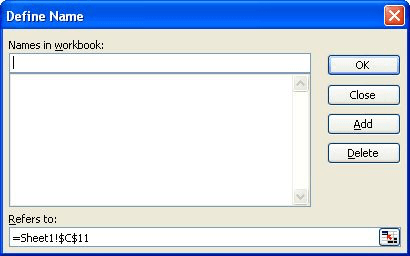
  2. Choose Name from the Insert menu, and then Define from the resulting submenu. Excel displays the Define Name dialog box. (See Figure 1.)
  3. Figure 1. Define Name dialog box.

  4. Replace the suggested name (if any) with the name you want to use for the cell or cell range you selected in step 1.
  5. Click on Add. Your name is now defined.
  6. Click on OK to close the Define Name dialog box.

The names you define in Excel can be up to 255 characters in length and contain any numbers or letters, as well as the period, backslash, question mark or underscore. Names cannot contain any other special characters, including spaces. In addition, names must start with either a letter, backslash or the underscore.

You can also define a name by using the formula bar. To use this method, follow these steps:

  1. Select the cell or cell range you want the name to represent.
  2. Click in the area at the very left of the formula bar.
  3. Type the name you want to define, pressing Enter when done.

The name is defined and appears in the formula bar area whenever the cell or cells are selected.

ExcelTips is your source for cost-effective Microsoft Excel training. This tip (2044) applies to Microsoft Excel 97, 2000, 2002, and 2003.

Author Bio

Allen Wyatt

With more than 50 non-fiction books and numerous magazine articles to his credit, Allen Wyatt is an internationally recognized author. He is president of Sharon Parq Associates, a computer and publishing services company. ...

MORE FROM ALLEN

Quickly Displaying the Page Setup Dialog Box

The Page Setup dialog box is indispensable in setting up the overall look of your document. You can display the dialog ...

Discover More

Saving in Two Locations

When you save a workbook to disk, you may want to automatically save a duplicate workbook in a separate location. This ...

Discover More

Synchronous Scrolling with More than Two Windows

Synchronous scrolling of different windows can be very helpful with some worksheets. Excel allows you to synchronize the ...

Discover More

Best-Selling VBA Tutorial for Beginners Take your Excel knowledge to the next level. With a little background in VBA programming, you can go well beyond basic spreadsheets and functions. Use macros to reduce errors, save time, and integrate with other Microsoft applications. Fully updated for the latest version of Office 365. Check out Microsoft 365 Excel VBA Programming For Dummies today!

More ExcelTips (menu)

Inserting Different Dashes

Excel supports several types of dashes. This tip describes those different types and explains how to enter them in a cell.

Discover More

Viewing More than Two Places in a Worksheet

If your worksheet gets big enough, it is easy to spend a lot of time navigating back and forth between different areas. ...

Discover More

Workaround for Multiple Rows of Worksheet Tabs

If you've got a lot of worksheets in your workbook, you may want to display their tabs in to rows at the bottom of the ...

Discover More
Subscribe

FREE SERVICE: Get tips like this every week in ExcelTips, a free productivity newsletter. Enter your address and click "Subscribe."

View most recent newsletter.

Comments

If you would like to add an image to your comment (not an avatar, but an image to help in making the point of your comment), include the characters [{fig}] (all 7 characters, in the sequence shown) in your comment text. You’ll be prompted to upload your image when you submit the comment. Maximum image size is 6Mpixels. Images larger than 600px wide or 1000px tall will be reduced. Up to three images may be included in a comment. All images are subject to review. Commenting privileges may be curtailed if inappropriate images are posted.

What is eight minus 1?

There are currently no comments for this tip. (Be the first to leave your comment—just use the simple form above!)


This Site

Got a version of Excel that uses the menu interface (Excel 97, Excel 2000, Excel 2002, or Excel 2003)? This site is for you! If you use a later version of Excel, visit our ExcelTips site focusing on the ribbon interface.

Newest Tips
Subscribe

FREE SERVICE: Get tips like this every week in ExcelTips, a free productivity newsletter. Enter your address and click "Subscribe."

(Your e-mail address is not shared with anyone, ever.)

View the most recent newsletter.