

Written by Allen Wyatt (last updated December 27, 2025)
This tip applies to Excel 97, 2000, 2002, and 2003
You probably already know that Excel will easily open a wide variety of spreadsheets stored in other formats. One that it will open is spreadsheets originally created in Lotus 1-2-3. If you have some old 1-2-3 files and you want to make sure that they are treated, in Excel, according to Lotus 1-2-3 "rules," there are a couple of settings you need to pay attention to. These settings are available from the Options dialog box. (See Figure 1.) Choose Options from the Tools menu to display this dialog box.
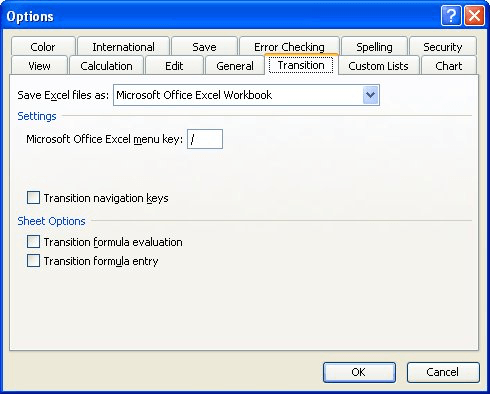
Figure 1. The Transition tab of the Options dialog box.
Make sure the Transition tab is displayed. Notice the two options under Sheet Options; these are what you need to work with:
Make your settings, as desired, then close the Options dialog box. Open the Lotus 1-2-3 spreadsheet and Excel should process the file according to the settings you made.
ExcelTips is your source for cost-effective Microsoft Excel training. This tip (3057) applies to Microsoft Excel 97, 2000, 2002, and 2003.

Dive Deep into Macros! Make Excel do things you thought were impossible, discover techniques you won't find anywhere else, and create powerful automated reports. Bill Jelen and Tracy Syrstad help you instantly visualize information to make it actionable. You’ll find step-by-step instructions, real-world case studies, and 50 workbooks packed with examples and solutions. Check out Microsoft Excel 2019 VBA and Macros today!
Excel, by default, periodically writes information to AutoRecover files that can help protect your data in case Excel is ...
Discover MoreWhen you open a workbook in Excel, the Open dialog box always starts within the folder in which you were last working. ...
Discover MoreIf you use Excel's Open dialog box to search for files and you notice that doing so ends up crashing your system, you may ...
Discover MoreFREE SERVICE: Get tips like this every week in ExcelTips, a free productivity newsletter. Enter your address and click "Subscribe."
There are currently no comments for this tip. (Be the first to leave your comment—just use the simple form above!)
Got a version of Excel that uses the menu interface (Excel 97, Excel 2000, Excel 2002, or Excel 2003)? This site is for you! If you use a later version of Excel, visit our ExcelTips site focusing on the ribbon interface.
FREE SERVICE: Get tips like this every week in ExcelTips, a free productivity newsletter. Enter your address and click "Subscribe."
Copyright © 2025 Sharon Parq Associates, Inc.
Comments