
Please Note: This article is written for users of the following Microsoft Excel versions: 97, 2000, 2002, and 2003. If you are using a later version (Excel 2007 or later), this tip may not work for you. For a version of this tip written specifically for later versions of Excel, click here: Advanced Filtering.

Written by Allen Wyatt (last updated October 2, 2021)
This tip applies to Excel 97, 2000, 2002, and 2003
There are some situations in which AutoFilter just doesn't have the muscle you need when processing your data. For instance, you might need to perform a calculation in a filter comparison. In these cases, you can use the advanced filtering capabilities of Excel.
Advanced filtering requires that you set up a criteria range in your worksheet. This criteria range is not part of your data list, but instead is used to signify how you want filtering to be performed. Typically, you would place your criteria before your data list, but you can also place it after. The important thing is that you separate your criteria from you data list by at least one empty row. Otherwise, Excel may think that the criteria are part of the actual data list.
The criteria are entered in your worksheet such that each column represents a different logical AND comparison, and each row represents a different logical OR comparison. If this sounds confusing, don't be concerned. An example will help clear things up.
Let's say you have a data list that starts in the sixth row of a worksheet. You have set aside the rows above this to specify your filtering criteria. The data list contains columns that describe information in your inventory. There are columns for item numbers, description, location, quantity, value, and the like. There is also a calculated column that indicates the profit derived from each inventory item.
At some time you may want to filter your data list so it shows only a limited subset of your inventory items. For instance, you might want to see only those items for which the quantity is over 2500 and profit is less than 1000, or those items where the quantity is greater than 7500, or those items where profit is under 100. (This is much more complex than you can perform using an custom AutoFilter.)
To set up such a filter, all you need to do is set your criteria. In this case, you would use cells A1:B4 as follows:
| A | B | |||
|---|---|---|---|---|
| 1 | Quantity | Profit | ||
| 2 | >2500 | <1000 | ||
| 3 | >7500 | |||
| 4 | <100 |
In this example the first row shows the field names to be used in comparisons, while the second through fourth rows define the actual comparisons. Notice that because there are two tests in the second row, these are considered an AND condition, and those on the other rows are considered OR conditions.
To apply these filtering criteria, follow these steps:
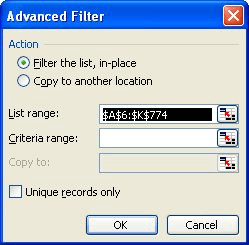
Figure 1. The Advanced Filter dialog box.
ExcelTips is your source for cost-effective Microsoft Excel training. This tip (2858) applies to Microsoft Excel 97, 2000, 2002, and 2003. You can find a version of this tip for the ribbon interface of Excel (Excel 2007 and later) here: Advanced Filtering.

Create Custom Apps with VBA! Discover how to extend the capabilities of Office 365 applications with VBA programming. Written in clear terms and understandable language, the book includes systematic tutorials and contains both intermediate and advanced content for experienced VB developers. Designed to be comprehensive, the book addresses not just one Office application, but the entire Office suite. Check out Mastering VBA for Microsoft Office 365 today!
The advanced filtering feature in Excel allows you to quickly copy unique information from one data list to another. If ...
Discover MoreFiltering is a great asset when you need to get a handle on a subset of your data. Excel even makes it easy to copy the ...
Discover MoreWhen working with large amounts of data, you may have a need to extract just the information that meets the criteria you ...
Discover MoreFREE SERVICE: Get tips like this every week in ExcelTips, a free productivity newsletter. Enter your address and click "Subscribe."
There are currently no comments for this tip. (Be the first to leave your comment—just use the simple form above!)
Got a version of Excel that uses the menu interface (Excel 97, Excel 2000, Excel 2002, or Excel 2003)? This site is for you! If you use a later version of Excel, visit our ExcelTips site focusing on the ribbon interface.
FREE SERVICE: Get tips like this every week in ExcelTips, a free productivity newsletter. Enter your address and click "Subscribe."
Copyright © 2025 Sharon Parq Associates, Inc.
 Please Note:
This article is written for users of the following Microsoft Excel versions: 97, 2000, 2002, and 2003. If you are using a later version (Excel 2007 or later), this tip may not work for you. For a version of this tip written specifically for later versions of Excel, click here:
Please Note:
This article is written for users of the following Microsoft Excel versions: 97, 2000, 2002, and 2003. If you are using a later version (Excel 2007 or later), this tip may not work for you. For a version of this tip written specifically for later versions of Excel, click here:
Comments