
Please Note: This article is written for users of the following Microsoft Excel versions: 97, 2000, 2002, and 2003. If you are using a later version (Excel 2007 or later), this tip may not work for you. For a version of this tip written specifically for later versions of Excel, click here: Reading Values from Graphs.
When creating charts from Excel data, you can smooth out the lines between data points by using any number of methods. At some point, you may want to actually figure out how Excel does its calculations to determine where to actually plot points along the line. Rather than visually trying to figure out where a point falls, you can follow these steps:
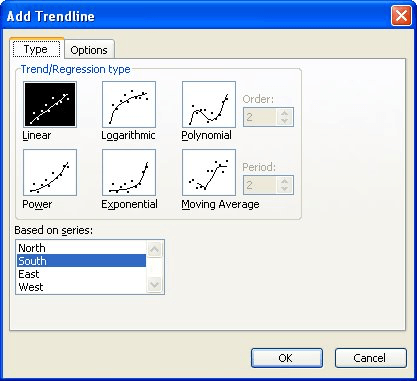
Figure 1. The Add Trendline dialog box.
The result is that Excel shows a formula, on the chart, that represents how it calculated each point along the line. You can then use this formula to determine points, as well. No more guessing! Once you know the formula, you can turn off the formula display if you want it off.
If you would like to know the different formulas that Excel uses for different types of trend lines, you can use the online Help system to search for "equations for calculating trendlines."
ExcelTips is your source for cost-effective Microsoft Excel training. This tip (3247) applies to Microsoft Excel 97, 2000, 2002, and 2003. You can find a version of this tip for the ribbon interface of Excel (Excel 2007 and later) here: Reading Values from Graphs.

Best-Selling VBA Tutorial for Beginners Take your Excel knowledge to the next level. With a little background in VBA programming, you can go well beyond basic spreadsheets and functions. Use macros to reduce errors, save time, and integrate with other Microsoft applications. Fully updated for the latest version of Office 365. Check out Microsoft 365 Excel VBA Programming For Dummies today!
Filling an AutoShape with a picture of your choosing is a neat trick. Excel makes it easy to do.
Discover MoreIf you use Excel's graphic capabilities to insert a line or an arrow into a worksheet, you can change how that arrow ...
Discover MoreMacros are a great way to process information in a worksheet. Part of that processing may involve moving graphics around ...
Discover MoreFREE SERVICE: Get tips like this every week in ExcelTips, a free productivity newsletter. Enter your address and click "Subscribe."
2021-09-10 04:07:57
Steven
Good Morning
I found this tip very helpful.
Many thanks and kind regards,
Steve
Got a version of Excel that uses the menu interface (Excel 97, Excel 2000, Excel 2002, or Excel 2003)? This site is for you! If you use a later version of Excel, visit our ExcelTips site focusing on the ribbon interface.
FREE SERVICE: Get tips like this every week in ExcelTips, a free productivity newsletter. Enter your address and click "Subscribe."
Copyright © 2026 Sharon Parq Associates, Inc.
 Please Note:
This article is written for users of the following Microsoft Excel versions: 97, 2000, 2002, and 2003. If you are using a later version (Excel 2007 or later), this tip may not work for you. For a version of this tip written specifically for later versions of Excel, click here:
Please Note:
This article is written for users of the following Microsoft Excel versions: 97, 2000, 2002, and 2003. If you are using a later version (Excel 2007 or later), this tip may not work for you. For a version of this tip written specifically for later versions of Excel, click here: 
Comments