
Besides allowing you to control what appears in a header or footer, Excel allows you to also control the distance at which they appear relative to the top or bottom of the paper on which you print your spreadsheet. To position the header or footer, follow these steps:
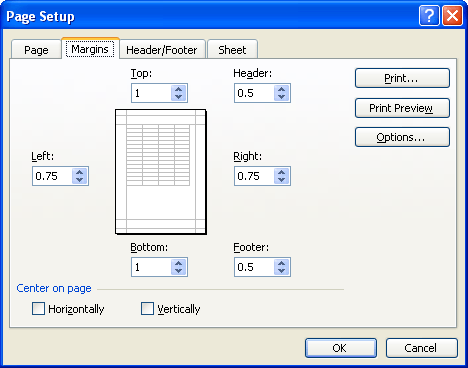
Figure 1. The Margins tab of the Page Setup dialog box.
Make sure that when you specify a position for the header or footer that the value is smaller than what you have set for top or bottom margins. If the Header or Footer values are larger than the margins, your header or footer could overlap with data printed on the page.
ExcelTips is your source for cost-effective Microsoft Excel training. This tip (2636) applies to Microsoft Excel 97, 2000, 2002, and 2003.

Best-Selling VBA Tutorial for Beginners Take your Excel knowledge to the next level. With a little background in VBA programming, you can go well beyond basic spreadsheets and functions. Use macros to reduce errors, save time, and integrate with other Microsoft applications. Fully updated for the latest version of Office 365. Check out Microsoft 365 Excel VBA Programming For Dummies today!
Need to copy headers and footers from one worksheet to another? How about from one workbook to another? Here are some ...
Discover MoreDon't like the default date format used by Excel when you place the date in a header or footer? You can use a macro to ...
Discover MoreOne of the things you can add to your page header or footer is the name of your workbook file name. Here's how to make ...
Discover MoreFREE SERVICE: Get tips like this every week in ExcelTips, a free productivity newsletter. Enter your address and click "Subscribe."
There are currently no comments for this tip. (Be the first to leave your comment—just use the simple form above!)
Got a version of Excel that uses the menu interface (Excel 97, Excel 2000, Excel 2002, or Excel 2003)? This site is for you! If you use a later version of Excel, visit our ExcelTips site focusing on the ribbon interface.
FREE SERVICE: Get tips like this every week in ExcelTips, a free productivity newsletter. Enter your address and click "Subscribe."
Copyright © 2026 Sharon Parq Associates, Inc.

Comments