
Please Note: This article is written for users of the following Microsoft Excel versions: 97, 2000, 2002, and 2003. If you are using a later version (Excel 2007 or later), this tip may not work for you. For a version of this tip written specifically for later versions of Excel, click here: Fixing the Decimal Point.
Most electronic calculators have an option that allows you to specify a fixed location for a decimal point. This comes in real handy when you are working with dollars and cents, for instances. With the decimal point fixed at two places, you can enter "213" and have the calculator translate it as "2.13". Likewise, if you enter "2", the calculator translates it as "0.02".
Excel has a feature that allows you to do the same thing. To fix the number of decimal places assumed when inputting information, follow these steps:
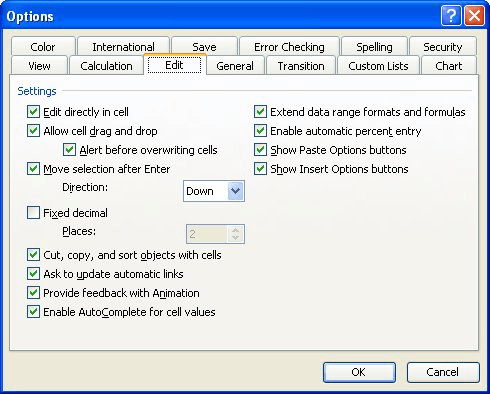
Figure 1. The Edit tab of the Options dialog box.
ExcelTips is your source for cost-effective Microsoft Excel training. This tip (2755) applies to Microsoft Excel 97, 2000, 2002, and 2003. You can find a version of this tip for the ribbon interface of Excel (Excel 2007 and later) here: Fixing the Decimal Point.

Create Custom Apps with VBA! Discover how to extend the capabilities of Office 365 applications with VBA programming. Written in clear terms and understandable language, the book includes systematic tutorials and contains both intermediate and advanced content for experienced VB developers. Designed to be comprehensive, the book addresses not just one Office application, but the entire Office suite. Check out Mastering VBA for Microsoft Office 365 today!
Paste some information into a worksheet and Excel helpfully displays some options related t the paste operation. If you ...
Discover MoreMost of Excel's commands affect whatever cells you select prior to invoking the command. Some commands, however, affect ...
Discover MoreIf you copy a cell that contains a reference to external data, do you get an error? It could be due to the complexity of ...
Discover MoreFREE SERVICE: Get tips like this every week in ExcelTips, a free productivity newsletter. Enter your address and click "Subscribe."
2023-04-19 07:27:33
Michael
On my Excel 2007 version it can be found thru
"Start" button (Upper left),
then Excel Options (bottom right),
Advanced tab,
2nd selection down in Editing Options: Automatically Insert a decimal point.
2023-04-18 15:58:13
Allen
There is, Greg, if you are using the version of Excel that this tip is for.
And, since you seem to have no Tools menu, note that "Note" at the top of the tip which can display a version that will work for your version of Excel.
-Allen
2023-04-18 15:54:50
Greg
There is no "tools" menu
Got a version of Excel that uses the menu interface (Excel 97, Excel 2000, Excel 2002, or Excel 2003)? This site is for you! If you use a later version of Excel, visit our ExcelTips site focusing on the ribbon interface.
FREE SERVICE: Get tips like this every week in ExcelTips, a free productivity newsletter. Enter your address and click "Subscribe."
Copyright © 2026 Sharon Parq Associates, Inc.
 Please Note:
This article is written for users of the following Microsoft Excel versions: 97, 2000, 2002, and 2003. If you are using a later version (Excel 2007 or later), this tip may not work for you. For a version of this tip written specifically for later versions of Excel, click here:
Please Note:
This article is written for users of the following Microsoft Excel versions: 97, 2000, 2002, and 2003. If you are using a later version (Excel 2007 or later), this tip may not work for you. For a version of this tip written specifically for later versions of Excel, click here: 
Comments