

Written by Allen Wyatt (last updated May 30, 2020)
This tip applies to Excel 97, 2000, 2002, and 2003
Excel provides several controls that help you control exactly what you print. Normally when you print, you would print the entire worksheet. However, Excel allows you to specify that only specific pages of the worksheet be printed. This comes in handy if you have used Page Break Preview or Print Preview to look at your worksheet, and you determine that you don't need all the pages that Excel would otherwise print. To print only selected pages, follow these steps:
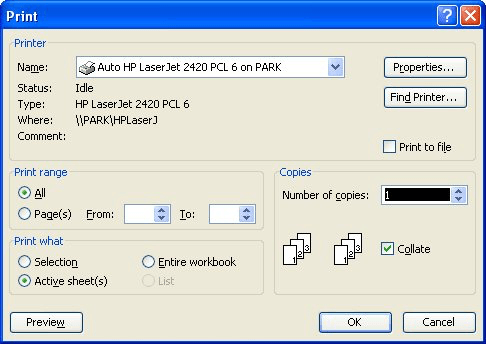
Figure 1. The Print dialog box.
When you specify the pages to print, in step 2, you can separate page numbers by commas. Thus, if you wanted to print pages 4 and 7, you should enter "4,7" (without the quote marks) in the Pages area of the dialog box. You can also specify ranges of pages to print. This means if you wanted to print pages 3 through 5 and page 9, you would enter "3-5,9" (again without the quote marks).
ExcelTips is your source for cost-effective Microsoft Excel training. This tip (3241) applies to Microsoft Excel 97, 2000, 2002, and 2003.

Dive Deep into Macros! Make Excel do things you thought were impossible, discover techniques you won't find anywhere else, and create powerful automated reports. Bill Jelen and Tracy Syrstad help you instantly visualize information to make it actionable. You’ll find step-by-step instructions, real-world case studies, and 50 workbooks packed with examples and solutions. Check out Microsoft Excel 2019 VBA and Macros today!
Need to print a portion of a worksheet, but don't want to waste paper by printing the whole thing? It's easy to print ...
Discover MoreIf you don't need to print an entire workbook, it can be confusing to figure out how to print just certain pages. This ...
Discover MoreBorders not printing properly? It could be any one of a number of reasons causing the problem. This tip provides some ...
Discover MoreFREE SERVICE: Get tips like this every week in ExcelTips, a free productivity newsletter. Enter your address and click "Subscribe."
There are currently no comments for this tip. (Be the first to leave your comment—just use the simple form above!)
Got a version of Excel that uses the menu interface (Excel 97, Excel 2000, Excel 2002, or Excel 2003)? This site is for you! If you use a later version of Excel, visit our ExcelTips site focusing on the ribbon interface.
FREE SERVICE: Get tips like this every week in ExcelTips, a free productivity newsletter. Enter your address and click "Subscribe."
Copyright © 2026 Sharon Parq Associates, Inc.
Comments