
Please Note: This article is written for users of the following Microsoft Excel versions: 97, 2000, 2002, and 2003. If you are using a later version (Excel 2007 or later), this tip may not work for you. For a version of this tip written specifically for later versions of Excel, click here: Adjusting Row Height for Your Text.
It is fairly easy to put more text in a cell than can be readily displayed. While you can widen the column to fit your text, sometimes this is not a good (or viable) option. Instead, you can wrap the text within the cell, so that the cell height is increased to display all the text. Follow these steps:
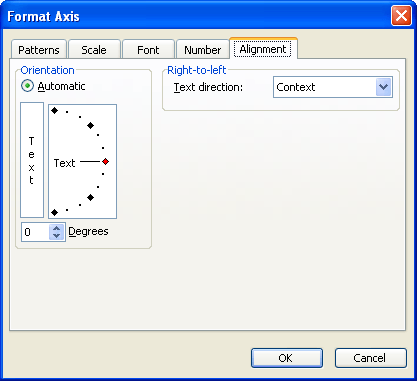
Figure 1. The Alignment tab of the Format Cells dialog box.
It is important to remember that your row height will only increase automatically if you haven't explicitly specified the row height. If the height doesn't expand to fit the contents of the cell, follow these steps, after doing the previous steps:
The text should now be wrapped within the cell and all visible.
ExcelTips is your source for cost-effective Microsoft Excel training. This tip (3187) applies to Microsoft Excel 97, 2000, 2002, and 2003. You can find a version of this tip for the ribbon interface of Excel (Excel 2007 and later) here: Adjusting Row Height for Your Text.

Create Custom Apps with VBA! Discover how to extend the capabilities of Office 365 applications with VBA programming. Written in clear terms and understandable language, the book includes systematic tutorials and contains both intermediate and advanced content for experienced VB developers. Designed to be comprehensive, the book addresses not just one Office application, but the entire Office suite. Check out Mastering VBA for Microsoft Office 365 today!
Hate to take your hands off the keyboard? Here are a couple of ways you can reject the mouse and still adjust the height ...
Discover MoreStraining your eyes to see the comments in a document? You can modify the size of the default font used for the comments, ...
Discover MoreA handy way to store latitude and longitude values in Excel is to treat them as regular time values. When it comes around ...
Discover MoreFREE SERVICE: Get tips like this every week in ExcelTips, a free productivity newsletter. Enter your address and click "Subscribe."
There are currently no comments for this tip. (Be the first to leave your comment—just use the simple form above!)
Got a version of Excel that uses the menu interface (Excel 97, Excel 2000, Excel 2002, or Excel 2003)? This site is for you! If you use a later version of Excel, visit our ExcelTips site focusing on the ribbon interface.
FREE SERVICE: Get tips like this every week in ExcelTips, a free productivity newsletter. Enter your address and click "Subscribe."
Copyright © 2026 Sharon Parq Associates, Inc.
 Please Note:
This article is written for users of the following Microsoft Excel versions: 97, 2000, 2002, and 2003. If you are using a later version (Excel 2007 or later), this tip may not work for you. For a version of this tip written specifically for later versions of Excel, click here:
Please Note:
This article is written for users of the following Microsoft Excel versions: 97, 2000, 2002, and 2003. If you are using a later version (Excel 2007 or later), this tip may not work for you. For a version of this tip written specifically for later versions of Excel, click here: 
Comments