
Please Note: This article is written for users of the following Microsoft Excel versions: 97, 2000, 2002, and 2003. If you are using a later version (Excel 2007 or later), this tip may not work for you. For a version of this tip written specifically for later versions of Excel, click here: Changing Cell Patterns.
Excel allows you to easily change the background pattern used in the cell. In the early days of spreadsheets, patterns were the only way you had to differentiate one cell from another. To change cell patterns, follow these steps:
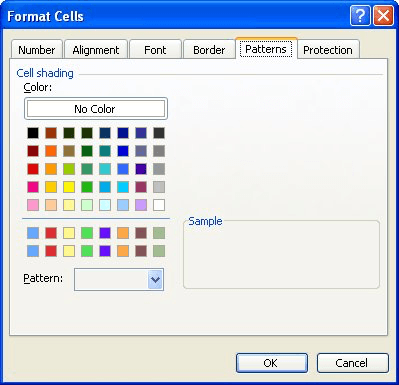
Figure 1. The Patterns tab of the Format Cells dialog box.
You should note that any pattern you select appears in the background of the cell, meaning that it appears behind any information contained within the cell. Thus, by creatively combining patterns, pattern colors, and other formatting options, you can create many, many different special effects.
ExcelTips is your source for cost-effective Microsoft Excel training. This tip (2763) applies to Microsoft Excel 97, 2000, 2002, and 2003. You can find a version of this tip for the ribbon interface of Excel (Excel 2007 and later) here: Changing Cell Patterns.

Best-Selling VBA Tutorial for Beginners Take your Excel knowledge to the next level. With a little background in VBA programming, you can go well beyond basic spreadsheets and functions. Use macros to reduce errors, save time, and integrate with other Microsoft applications. Fully updated for the latest version of Office 365. Check out Microsoft 365 Excel VBA Programming For Dummies today!
If you have some cells merged in a worksheet, and you wrap text within that merged cell, Excel won't automatically resize ...
Discover MoreWhen your macro checks the formatting used for a cell, it needs to be careful that the type of formatting being checked ...
Discover MoreProfessional typesetting has, in many ways, spoiled us. One way this is evident is in the preference we show for making ...
Discover MoreFREE SERVICE: Get tips like this every week in ExcelTips, a free productivity newsletter. Enter your address and click "Subscribe."
There are currently no comments for this tip. (Be the first to leave your comment—just use the simple form above!)
Got a version of Excel that uses the menu interface (Excel 97, Excel 2000, Excel 2002, or Excel 2003)? This site is for you! If you use a later version of Excel, visit our ExcelTips site focusing on the ribbon interface.
FREE SERVICE: Get tips like this every week in ExcelTips, a free productivity newsletter. Enter your address and click "Subscribe."
Copyright © 2026 Sharon Parq Associates, Inc.
 Please Note:
This article is written for users of the following Microsoft Excel versions: 97, 2000, 2002, and 2003. If you are using a later version (Excel 2007 or later), this tip may not work for you. For a version of this tip written specifically for later versions of Excel, click here:
Please Note:
This article is written for users of the following Microsoft Excel versions: 97, 2000, 2002, and 2003. If you are using a later version (Excel 2007 or later), this tip may not work for you. For a version of this tip written specifically for later versions of Excel, click here: 
Comments