
Please Note: This article is written for users of the following Microsoft Excel versions: 97, 2000, 2002, and 2003. If you are using a later version (Excel 2007 or later), this tip may not work for you. For a version of this tip written specifically for later versions of Excel, click here: Reading Values from Graphs.
When creating charts from Excel data, you can smooth out the lines between data points by using any number of methods. At some point, you may want to actually figure out how Excel does its calculations to determine where to actually plot points along the line. Rather than visually trying to figure out where a point falls, you can follow these steps:
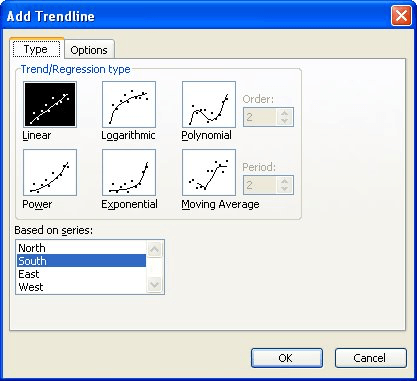
Figure 1. The Add Trendline dialog box.
The result is that Excel shows a formula, on the chart, that represents how it calculated each point along the line. You can then use this formula to determine points, as well. No more guessing! Once you know the formula, you can turn off the formula display if you want it off.
If you would like to know the different formulas that Excel uses for different types of trend lines, you can use the online Help system to search for "equations for calculating trendlines."
ExcelTips is your source for cost-effective Microsoft Excel training. This tip (3247) applies to Microsoft Excel 97, 2000, 2002, and 2003. You can find a version of this tip for the ribbon interface of Excel (Excel 2007 and later) here: Reading Values from Graphs.

Create Custom Apps with VBA! Discover how to extend the capabilities of Office 365 applications with VBA programming. Written in clear terms and understandable language, the book includes systematic tutorials and contains both intermediate and advanced content for experienced VB developers. Designed to be comprehensive, the book addresses not just one Office application, but the entire Office suite. Check out Mastering VBA for Microsoft Office 365 today!
If you need to create a chart that uses logarithmic values on both axes, it can be confusing how to get what you want. ...
Discover MoreDon't like the way that Excel formats lines and arrows? You can easily make your own formatting changes, and then use ...
Discover MoreGraphics are a great addition to a worksheet, but there may be times when you don't want them printed. The easy way to ...
Discover MoreFREE SERVICE: Get tips like this every week in ExcelTips, a free productivity newsletter. Enter your address and click "Subscribe."
2021-09-10 04:07:57
Steven
Good MorningnnI found this tip very helpful.nnMany thanks and kind regards,nnSteve
Got a version of Excel that uses the menu interface (Excel 97, Excel 2000, Excel 2002, or Excel 2003)? This site is for you! If you use a later version of Excel, visit our ExcelTips site focusing on the ribbon interface.
FREE SERVICE: Get tips like this every week in ExcelTips, a free productivity newsletter. Enter your address and click "Subscribe."
Copyright © 2026 Sharon Parq Associates, Inc.
 Please Note:
This article is written for users of the following Microsoft Excel versions: 97, 2000, 2002, and 2003. If you are using a later version (Excel 2007 or later), this tip may not work for you. For a version of this tip written specifically for later versions of Excel, click here:
Please Note:
This article is written for users of the following Microsoft Excel versions: 97, 2000, 2002, and 2003. If you are using a later version (Excel 2007 or later), this tip may not work for you. For a version of this tip written specifically for later versions of Excel, click here: 
Comments