
If you have a slower-than-desired laser printer, you may despair (or take a lunch break) whenever you need to print multiple copies of a multi-page worksheet. For instance, it can take a long time to print five copies of a three-page worksheet.
The reason for this is that Excel, by default, sends each worksheet individually. Thus, pages 1 through 3 are sent, then 1 through 3 are sent again, and again, until all five sets have been printed.
With slow laser printers, you could get your output much faster if you turned off collating on your printout. This means that page 1 would be printed five times, then page 2 five times, and finally five copies of page 3. You will have to manually collate your output, but there is a good chance you can do this faster than your laser printer could print the five copies.
To turn off collating in Excel, follow these steps:
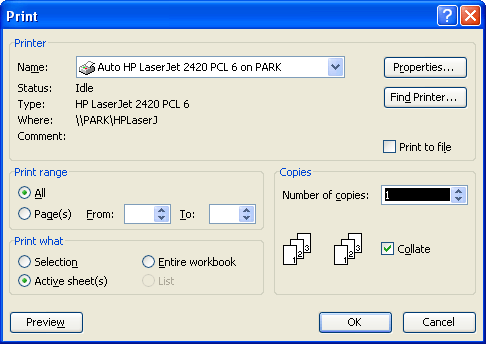
Figure 1. The Print dialog box.
The reason this works is that with collation turned off, Excel sends only a single copy of each page, along with a command that tells how many copies of each page to print. The laser printer then does its printing from memory. The result is that only three pages are transferred to the printer instead of the original fifteen (three times five) for the collated sets.
ExcelTips is your source for cost-effective Microsoft Excel training. This tip (3238) applies to Microsoft Excel 97, 2000, 2002, and 2003.

Program Successfully in Excel! This guide will provide you with all the information you need to automate any task in Excel and save time and effort. Learn how to extend Excel's functionality with VBA to create solutions not possible with the standard features. Includes latest information for Excel 2024 and Microsoft 365. Check out Mastering Excel VBA Programming today!
When you print a worksheet, you don't need to print the whole thing. You can print only the pages you want. Here's how to ...
Discover MoreOn-screen Excel displays row numbers that help you easily see what is in each row. If you want to print these row ...
Discover MoreWhen printing a worksheet, there may be times when you want to send the printer output to a disk file instead of to the ...
Discover MoreFREE SERVICE: Get tips like this every week in ExcelTips, a free productivity newsletter. Enter your address and click "Subscribe."
There are currently no comments for this tip. (Be the first to leave your comment—just use the simple form above!)
Got a version of Excel that uses the menu interface (Excel 97, Excel 2000, Excel 2002, or Excel 2003)? This site is for you! If you use a later version of Excel, visit our ExcelTips site focusing on the ribbon interface.
FREE SERVICE: Get tips like this every week in ExcelTips, a free productivity newsletter. Enter your address and click "Subscribe."
Copyright © 2026 Sharon Parq Associates, Inc.

Comments