
Please Note: This article is written for users of the following Microsoft Excel versions: 97, 2000, 2002, and 2003. If you are using a later version (Excel 2007 or later), this tip may not work for you. For a version of this tip written specifically for later versions of Excel, click here: Collating Copies.
If you work where there is a good size copy machine, you already know what it means to collate something. With a copier, it means the pages you are copying are placed in complete sets which can be used right away. It is the same in Excel. If you have a worksheet that occupies five pages, and you are printing multiple copies, you can either print them collated or uncollated. When they are collated, they are in page 1–5 order for each of the five sets. If they are not collated, five copies of the first page are printed, then five of the second, and so on.
To control collating, follow these steps:
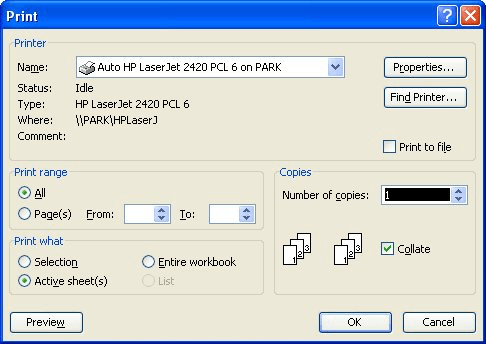
Figure 1. The Print dialog box.
ExcelTips is your source for cost-effective Microsoft Excel training. This tip (3237) applies to Microsoft Excel 97, 2000, 2002, and 2003. You can find a version of this tip for the ribbon interface of Excel (Excel 2007 and later) here: Collating Copies.

Create Custom Apps with VBA! Discover how to extend the capabilities of Office 365 applications with VBA programming. Written in clear terms and understandable language, the book includes systematic tutorials and contains both intermediate and advanced content for experienced VB developers. Designed to be comprehensive, the book addresses not just one Office application, but the entire Office suite. Check out Mastering VBA for Microsoft Office 365 today!
Need to print a portion of a worksheet, but don't want to waste paper by printing the whole thing? It's easy to print ...
Discover MoreWhen you print a worksheet, you can specify in the Print dialog box how many copies you want printed. If you want the ...
Discover MoreDon't want your worksheets to be printed out? You can make it a bit harder to get a printout by applying the techniques ...
Discover MoreFREE SERVICE: Get tips like this every week in ExcelTips, a free productivity newsletter. Enter your address and click "Subscribe."
There are currently no comments for this tip. (Be the first to leave your comment—just use the simple form above!)
Got a version of Excel that uses the menu interface (Excel 97, Excel 2000, Excel 2002, or Excel 2003)? This site is for you! If you use a later version of Excel, visit our ExcelTips site focusing on the ribbon interface.
FREE SERVICE: Get tips like this every week in ExcelTips, a free productivity newsletter. Enter your address and click "Subscribe."
Copyright © 2026 Sharon Parq Associates, Inc.
 Please Note:
This article is written for users of the following Microsoft Excel versions: 97, 2000, 2002, and 2003. If you are using a later version (Excel 2007 or later), this tip may not work for you. For a version of this tip written specifically for later versions of Excel, click here:
Please Note:
This article is written for users of the following Microsoft Excel versions: 97, 2000, 2002, and 2003. If you are using a later version (Excel 2007 or later), this tip may not work for you. For a version of this tip written specifically for later versions of Excel, click here: 
Comments