
Please Note: This article is written for users of the following Microsoft Excel versions: 97, 2000, 2002, and 2003. If you are using a later version (Excel 2007 or later), this tip may not work for you. For a version of this tip written specifically for later versions of Excel, click here: Assigning Macros to Graphics.
You already know that Excel allows you to add graphics to your worksheets, such as pictures. You may not know, however, that you can assign macros to these graphics. With a macro associated with a graphic, the macro is executed whenever someone clicks on the graphic.
To assign a macro to a graphic, follow these steps:
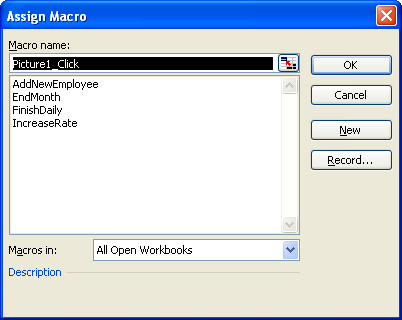
Figure 1. The Assign Macro dialog box.
Save your workbook and test out your assignment by clicking on the graphic. The macro should run, as desired.
Note:
ExcelTips is your source for cost-effective Microsoft Excel training. This tip (2971) applies to Microsoft Excel 97, 2000, 2002, and 2003. You can find a version of this tip for the ribbon interface of Excel (Excel 2007 and later) here: Assigning Macros to Graphics.

Program Successfully in Excel! This guide will provide you with all the information you need to automate any task in Excel and save time and effort. Learn how to extend Excel's functionality with VBA to create solutions not possible with the standard features. Includes latest information for Excel 2024 and Microsoft 365. Check out Mastering Excel VBA Programming today!
Copying information using a macro is rather simple, although there are multiple ways you can do the copying. The most ...
Discover MoreExcel allows you to fill a cell's background with just about any color you want. If you need to determine the RGB value ...
Discover MoreWhen you assign a macro to a shortcut key, you make it easy to run the macro without ever removing your hands from the ...
Discover MoreFREE SERVICE: Get tips like this every week in ExcelTips, a free productivity newsletter. Enter your address and click "Subscribe."
There are currently no comments for this tip. (Be the first to leave your comment—just use the simple form above!)
Got a version of Excel that uses the menu interface (Excel 97, Excel 2000, Excel 2002, or Excel 2003)? This site is for you! If you use a later version of Excel, visit our ExcelTips site focusing on the ribbon interface.
FREE SERVICE: Get tips like this every week in ExcelTips, a free productivity newsletter. Enter your address and click "Subscribe."
Copyright © 2026 Sharon Parq Associates, Inc.
 Please Note:
This article is written for users of the following Microsoft Excel versions: 97, 2000, 2002, and 2003. If you are using a later version (Excel 2007 or later), this tip may not work for you. For a version of this tip written specifically for later versions of Excel, click here:
Please Note:
This article is written for users of the following Microsoft Excel versions: 97, 2000, 2002, and 2003. If you are using a later version (Excel 2007 or later), this tip may not work for you. For a version of this tip written specifically for later versions of Excel, click here: 
Comments