
Please Note: This article is written for users of the following Microsoft Excel versions: 97, 2000, 2002, and 2003. If you are using a later version (Excel 2007 or later), this tip may not work for you. For a version of this tip written specifically for later versions of Excel, click here: Nifty Zooming.
If you zoom in and out of your documents quite a bit, you may get tired of using the pull-down Zoom control on the toolbar. If you have one of the mice that has a small wheel between the left and right mouse buttons, you can do a neat trick. All you need to do is hold down the Ctrl key as you turn the small wheel. Each click up or down increases or decreases the zoom factor by 15%.
You can use this method of zooming for any magnification between 10% and 100%. If you want to zoom over 100%, you must use the Zoom control on the toolbar or use the Zoom option from the View menu.
If you like this feature so much that you want to use it all the time, you can instruct Excel to always use the mouse's wheel to zoom. Follow these steps:
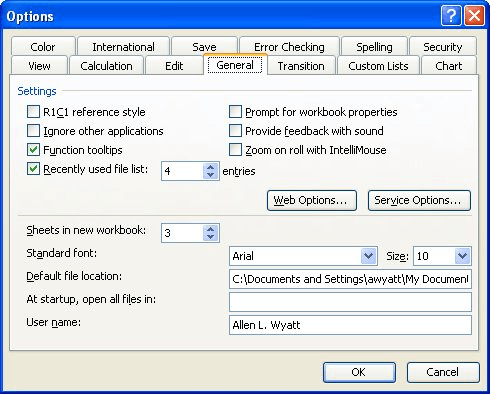
Figure 1. The General tab of the Options dialog box.
Now you can zoom by rolling the mouse wheel, or scroll through the worksheet by holding down the Ctrl key as you turn the wheel.
ExcelTips is your source for cost-effective Microsoft Excel training. This tip (2966) applies to Microsoft Excel 97, 2000, 2002, and 2003. You can find a version of this tip for the ribbon interface of Excel (Excel 2007 and later) here: Nifty Zooming.

Program Successfully in Excel! This guide will provide you with all the information you need to automate any task in Excel and save time and effort. Learn how to extend Excel's functionality with VBA to create solutions not possible with the standard features. Includes latest information for Excel 2024 and Microsoft 365. Check out Mastering Excel VBA Programming today!
Hate to take your fingers off the keyboard? Here's how you can move from worksheet to worksheet without touching the mouse.
Discover MoreDo you want Excel to use a task button, on the Windows Taskbar, for each of your open worksheets? Then just make this ...
Discover MoreNeed to understand who is using a particular workbook? There are a number of ways you can find out, as discussed in this tip.
Discover MoreFREE SERVICE: Get tips like this every week in ExcelTips, a free productivity newsletter. Enter your address and click "Subscribe."
There are currently no comments for this tip. (Be the first to leave your comment—just use the simple form above!)
Got a version of Excel that uses the menu interface (Excel 97, Excel 2000, Excel 2002, or Excel 2003)? This site is for you! If you use a later version of Excel, visit our ExcelTips site focusing on the ribbon interface.
FREE SERVICE: Get tips like this every week in ExcelTips, a free productivity newsletter. Enter your address and click "Subscribe."
Copyright © 2026 Sharon Parq Associates, Inc.
 Please Note:
This article is written for users of the following Microsoft Excel versions: 97, 2000, 2002, and 2003. If you are using a later version (Excel 2007 or later), this tip may not work for you. For a version of this tip written specifically for later versions of Excel, click here:
Please Note:
This article is written for users of the following Microsoft Excel versions: 97, 2000, 2002, and 2003. If you are using a later version (Excel 2007 or later), this tip may not work for you. For a version of this tip written specifically for later versions of Excel, click here: 
Comments