
Please Note: This article is written for users of the following Microsoft Excel versions: 97, 2000, 2002, and 2003. If you are using a later version (Excel 2007 or later), this tip may not work for you. For a version of this tip written specifically for later versions of Excel, click here: Hiding Graphics.
If you are preparing worksheets that contain graphics, you may want to print the graphics on one version of the worksheet, but not print them on another. For example, you might be preparing a test for students, and the test requires them to draw a graph. You would want the printout of the student version of the test to leave space for drawing a graph, but the printout of the answer sheet should include the graphic showing how the students should answer.
The easiest way to handle this in Excel is to just turn off display of the graphics when you need to print the student test. In order to do this, create a single file that contains the questions and the answers. Assuming the answers are graphic files, follow these steps:
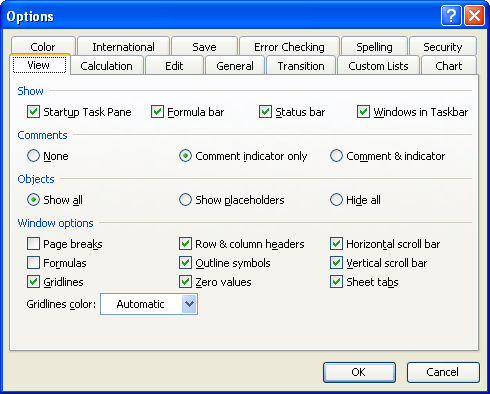
Figure 1. The View tab of the Options dialog box.
You can now print your document, as normal. (Excel prints it very quickly since it doesn't need to send the graphics to the printer.) When you later want to see the graphics, repeat the steps, but make sure the Show All radio button is selected in step 3.
ExcelTips is your source for cost-effective Microsoft Excel training. This tip (2951) applies to Microsoft Excel 97, 2000, 2002, and 2003. You can find a version of this tip for the ribbon interface of Excel (Excel 2007 and later) here: Hiding Graphics.
Dive Deep into Macros! Make Excel do things you thought were impossible, discover techniques you won't find anywhere else, and create powerful automated reports. Bill Jelen and Tracy Syrstad help you instantly visualize information to make it actionable. You’ll find step-by-step instructions, real-world case studies, and 50 workbooks packed with examples and solutions. Check out Microsoft Excel 2019 VBA and Macros today!
You can add all sorts of objects to your workbooks, including video clips. Here's the pros and cons (along with the ...
Discover MoreNeed to make sure that someone cannot delete a graphic in a worksheet? The ability to protect the graphic depends on ...
Discover MoreIf you use Excel to keep a graphic with each row of data you amass, you may wonder if there is a way to easily delete the ...
Discover MoreFREE SERVICE: Get tips like this every week in ExcelTips, a free productivity newsletter. Enter your address and click "Subscribe."
There are currently no comments for this tip. (Be the first to leave your comment—just use the simple form above!)
Got a version of Excel that uses the menu interface (Excel 97, Excel 2000, Excel 2002, or Excel 2003)? This site is for you! If you use a later version of Excel, visit our ExcelTips site focusing on the ribbon interface.
FREE SERVICE: Get tips like this every week in ExcelTips, a free productivity newsletter. Enter your address and click "Subscribe."
Copyright © 2026 Sharon Parq Associates, Inc.
 Please Note:
This article is written for users of the following Microsoft Excel versions: 97, 2000, 2002, and 2003. If you are using a later version (Excel 2007 or later), this tip may not work for you. For a version of this tip written specifically for later versions of Excel, click here:
Please Note:
This article is written for users of the following Microsoft Excel versions: 97, 2000, 2002, and 2003. If you are using a later version (Excel 2007 or later), this tip may not work for you. For a version of this tip written specifically for later versions of Excel, click here: 
Comments