
Inserting a Voice Annotation in Your Worksheet

Written by Allen Wyatt (last updated January 21, 2023)

Rather than adding notes to the cells in your worksheets, you can imbed audio files that serve as audible annotations. In order to do this, your computer must have sound capabilities (either built-in or through an added sound board) which are supported by Windows, along with a microphone. Then you can follow these steps:
  1. Position the insertion point where you want the message inserted.
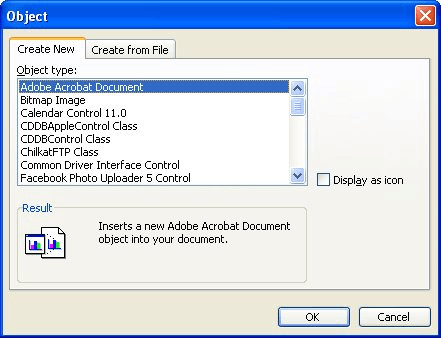
  2. Choose Object from the Insert menu. You will see the Object dialog box.
  3. Make sure the Create New tab is selected. (See Figure 1.)
  4. Figure 1. The Create New tab of the Object dialog box.

  5. In the list of object types, look for a type of sound object. It may have a name such as Sound or Wave Sound. Select this option.
  6. Click on OK. The Sound Recorder (a Windows accessory) is displayed.
  7. Use the Sound Recorder to record your message.
  8. Close the Sound Recorder window.
  9. You may be asked if you want to update your workbook. If so, then click on Yes.
  10. An icon of a speaker appears in your workbook where the sound is inserted.

You can later listen to your message by simply double-clicking on the speaker icon.

ExcelTips is your source for cost-effective Microsoft Excel training. This tip (2870) applies to Microsoft Excel 97, 2000, 2002, and 2003.

Author Bio

Allen Wyatt

With more than 50 non-fiction books and numerous magazine articles to his credit, Allen Wyatt is an internationally recognized author. He is president of Sharon Parq Associates, a computer and publishing services company. ...

MORE FROM ALLEN

Setting Default Print Margins

Don't like the print margins that Excel uses by default? You can change the default by changing the workbook on which ...

Discover More

Modifying How Windows Notifies You of Impending Changes

Part of the security system built into Windows involves notifying you when changes are about to occur to your system. ...

Discover More

Locating the My Documents Folder

Need to do some macro processing of documents in the user's My Documents folder? First step is to figure out where the ...

Discover More

Dive Deep into Macros! Make Excel do things you thought were impossible, discover techniques you won't find anywhere else, and create powerful automated reports. Bill Jelen and Tracy Syrstad help you instantly visualize information to make it actionable. You’ll find step-by-step instructions, real-world case studies, and 50 workbooks packed with examples and solutions. Check out Microsoft Excel 2019 VBA and Macros today!

More ExcelTips (menu)

Resolving Revisions

You've reviewed the changes that were made to your workbook using the Highlight Changes tool. Now you need to remove the ...

Discover More

Understanding Views

Need to display your worksheet in different ways? A quick way to do this is to create views, as described in this tip.

Discover More

Creating Dependent Drop-Lists

Drop-down lists are handy in an Excel worksheet, and you they can be even more handy if a selection in one drop-down ...

Discover More
Subscribe

FREE SERVICE: Get tips like this every week in ExcelTips, a free productivity newsletter. Enter your address and click "Subscribe."

View most recent newsletter.

Comments

If you would like to add an image to your comment (not an avatar, but an image to help in making the point of your comment), include the characters [{fig}] (all 7 characters, in the sequence shown) in your comment text. You’ll be prompted to upload your image when you submit the comment. Maximum image size is 6Mpixels. Images larger than 600px wide or 1000px tall will be reduced. Up to three images may be included in a comment. All images are subject to review. Commenting privileges may be curtailed if inappropriate images are posted.

What is four more than 7?

There are currently no comments for this tip. (Be the first to leave your comment—just use the simple form above!)


This Site

Got a version of Excel that uses the menu interface (Excel 97, Excel 2000, Excel 2002, or Excel 2003)? This site is for you! If you use a later version of Excel, visit our ExcelTips site focusing on the ribbon interface.

Newest Tips
Subscribe

FREE SERVICE: Get tips like this every week in ExcelTips, a free productivity newsletter. Enter your address and click "Subscribe."

(Your e-mail address is not shared with anyone, ever.)

View the most recent newsletter.