
In Excel you are not limited to the plain old white or somewhat shaded background for your worksheets. Instead, you can use a graphic image for a background. The effect is much like the backgrounds you see on Web pages—the image used as the background is tiled (repeated) so that it fills the entire background of the worksheet. To use a graphic as a worksheet background, follow these steps:
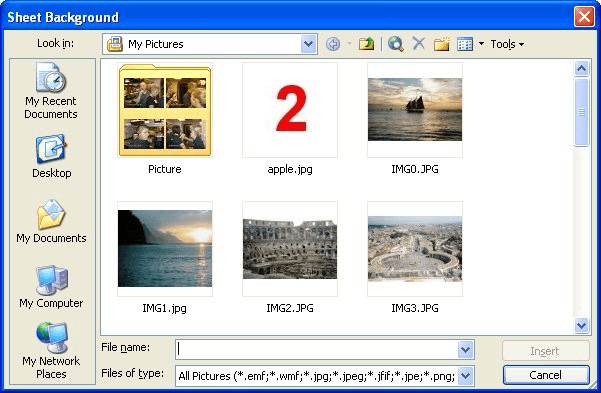
Figure 1. The Sheet Background dialog box.
The image is imported and fills the background of your worksheet. To later remove a background, choose Sheet from the Format menu, then choose Delete Background from the resulting submenu.
ExcelTips is your source for cost-effective Microsoft Excel training. This tip (2634) applies to Microsoft Excel 97, 2000, 2002, and 2003.

Create Custom Apps with VBA! Discover how to extend the capabilities of Office 365 applications with VBA programming. Written in clear terms and understandable language, the book includes systematic tutorials and contains both intermediate and advanced content for experienced VB developers. Designed to be comprehensive, the book addresses not just one Office application, but the entire Office suite. Check out Mastering VBA for Microsoft Office 365 today!
Want to "see through" an image you place on a worksheet? You can do so by using the steps in this tip.
Discover MoreHave you ever wanted to take a "picture" of a part of a worksheet and put it in another section? This tip explains how to ...
Discover MoreBackground images for a worksheet are automatically repeated over and over (tiled) by Excel. This tip describes a ...
Discover MoreFREE SERVICE: Get tips like this every week in ExcelTips, a free productivity newsletter. Enter your address and click "Subscribe."
There are currently no comments for this tip. (Be the first to leave your comment—just use the simple form above!)
Got a version of Excel that uses the menu interface (Excel 97, Excel 2000, Excel 2002, or Excel 2003)? This site is for you! If you use a later version of Excel, visit our ExcelTips site focusing on the ribbon interface.
FREE SERVICE: Get tips like this every week in ExcelTips, a free productivity newsletter. Enter your address and click "Subscribe."
Copyright © 2026 Sharon Parq Associates, Inc.

Comments