
Setting Your Default Directory

Written by Allen Wyatt (last updated February 18, 2023)

Normally, Excel starts looking for spreadsheets in the directory in which you started the program. Typically this is your directory. If you want to change the default directory path, you can do so in the following manner:
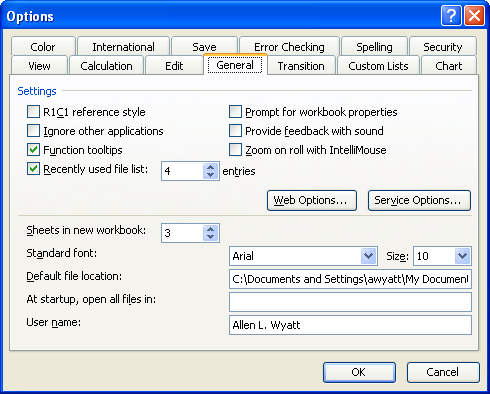
  1. Choose Options from the Tools menu. You will see the Options dialog box.
  2. Make sure the General tab is selected. (See Figure 1.)
  3. Figure 1. The General tab of the Options dialog box.

  4. Change the Default File Location box to reflect the path of the directory you want to use as the default for your Excel files.
  5. Click on OK.

ExcelTips is your source for cost-effective Microsoft Excel training. This tip (2632) applies to Microsoft Excel 97, 2000, 2002, and 2003.

Author Bio

Allen Wyatt

With more than 50 non-fiction books and numerous magazine articles to his credit, Allen Wyatt is an internationally recognized author. He is president of Sharon Parq Associates, a computer and publishing services company. ...

MORE FROM ALLEN

Moving Found Text Down On a Page

When you use the Search feature to find information, if the information is not on the visible page, then Word displays ...

Discover More

Automatically Updating Charts for Additional Data

Add information to the data on which a chart is based, and you may find out that the information is excluded from the ...

Discover More

Changing Existing Captions

Word allows you to automatically create captions for various elements of your document, such as figures and tables. These ...

Discover More

Create Custom Apps with VBA! Discover how to extend the capabilities of Office 365 applications with VBA programming. Written in clear terms and understandable language, the book includes systematic tutorials and contains both intermediate and advanced content for experienced VB developers. Designed to be comprehensive, the book addresses not just one Office application, but the entire Office suite. Check out Mastering VBA for Microsoft Office 365 today!

More ExcelTips (menu)

Changing Horizontal Orientation

One of the international features of Excel is the ability to switch the orientation of how information is presented. This ...

Discover More

Reducing the Size of the Save As Dialog Box

Dialog boxes are designed to be limited in scope, so that they cover only a portion of your screen. What if a dialog box ...

Discover More

Hiding a Huge Number of Rows

Need to hide a large number of rows? It's easy to do if you combine a few keyboard shortcuts. Here are several techniques ...

Discover More
Subscribe

FREE SERVICE: Get tips like this every week in ExcelTips, a free productivity newsletter. Enter your address and click "Subscribe."

View most recent newsletter.

Comments

If you would like to add an image to your comment (not an avatar, but an image to help in making the point of your comment), include the characters [{fig}] (all 7 characters, in the sequence shown) in your comment text. You’ll be prompted to upload your image when you submit the comment. Maximum image size is 6Mpixels. Images larger than 600px wide or 1000px tall will be reduced. Up to three images may be included in a comment. All images are subject to review. Commenting privileges may be curtailed if inappropriate images are posted.

What is four more than 7?

There are currently no comments for this tip. (Be the first to leave your comment—just use the simple form above!)


This Site

Got a version of Excel that uses the menu interface (Excel 97, Excel 2000, Excel 2002, or Excel 2003)? This site is for you! If you use a later version of Excel, visit our ExcelTips site focusing on the ribbon interface.

Newest Tips
Subscribe

FREE SERVICE: Get tips like this every week in ExcelTips, a free productivity newsletter. Enter your address and click "Subscribe."

(Your e-mail address is not shared with anyone, ever.)

View the most recent newsletter.