
Pictures in AutoShapes

Written by Allen Wyatt (last updated July 13, 2024)

Excel allows you to format the appearance of the AutoShapes you place in a worksheet. If you display the Format AutoShape dialog box, you can change all sorts of colors, lines, fills, fonts, and other attributes of the AutoShape. One really nifty formatting feature is to place a picture within an AutoShape. Follow these steps:
  1. Create your AutoShape as you normally would.
  2. Right-click the AutoShape. Excel displays a Context menu for the AutoShape.
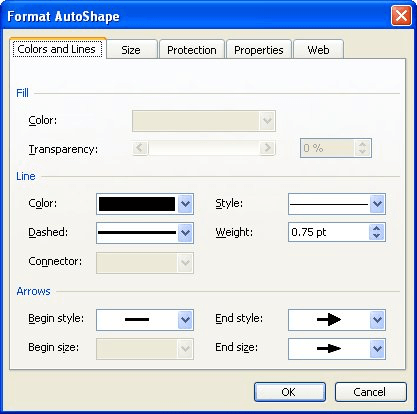
  3. Choose Format AutoShape from the Context menu. Excel displays the Format AutoShape dialog box. (If Format AutoShape was not one of the options from the Context menu, then you didn't right-click the AutoShape itself in step 2. Make sure that you right-click one of the lines that make up the AutoShape.)
  4. Display the Colors and Lines tab. (See Figure 1.)
  5. Figure 1. The Colors and Lines tab of the Format AutoShape dialog box.
  6. Click the drop-down arrow for the Color drop-down list.
  7. On the drop-down list, choose Fill Effects. Excel displays the Fill Effects dialog box.
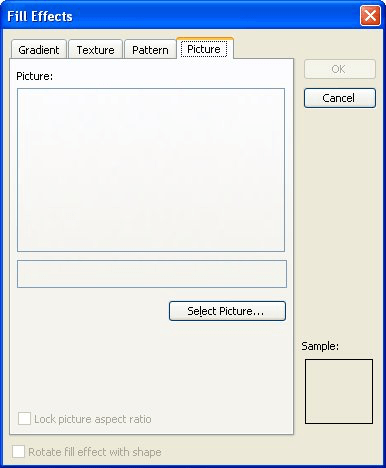
  8. Make sure the Picture tab is displayed. (See Figure 2.)
  9. Figure 2. The Picture tab of the Fill Effects dialog box.

  10. Use the controls in the dialog box to select a picture you want in the AutoShape.
  11. Click OK as many times as necessary to close all the dialog boxes.

The picture you selected in step 8 should now appear in the background of the AutoShape. In most cases the AutoShape looks like a "mask" over the picture, which is a nice effect. You should also use this technique sparingly, as each picture you place in an AutoShape can greatly increase the size of your workbook.

ExcelTips is your source for cost-effective Microsoft Excel training. This tip (2391) applies to Microsoft Excel 97, 2000, 2002, and 2003.

Author Bio

Allen Wyatt

With more than 50 non-fiction books and numerous magazine articles to his credit, Allen Wyatt is an internationally recognized author. He is president of Sharon Parq Associates, a computer and publishing services company. ...

MORE FROM ALLEN

Changing the Style Gallery

The style gallery appears on the Home tab of the ribbon. You may want to modify how Word displays styles within the ...

Discover More

Searching for All

When you are working on a worksheet (particularly a large one), you may want to search for and possibly copy information ...

Discover More

Inconsistent Availability of Drag and Drop Editing

Some people really like the ability to drag and drop text as they edit. What do you do if the ability is only available ...

Discover More

Professional Development Guidance! Four world-class developers offer start-to-finish guidance for building powerful, robust, and secure applications with Excel. The authors show how to consistently make the right design decisions and make the most of Excel's powerful features. Check out Professional Excel Development today!

More ExcelTips (menu)

Flipping a Drawing Object

Don't like the way a drawing object looks? Perhaps flipping the object could help appearances. Excel allows you to flip ...

Discover More

Symmetric Resizing of Graphics

Graphics can be easily resized once they are placed in a worksheet. Here's how you can make sure that the relationship ...

Discover More

Pixels in a Text String

Determining the length of a text string is easy, but figuring out how many pixels are represented by those characters is ...

Discover More
Subscribe

FREE SERVICE: Get tips like this every week in ExcelTips, a free productivity newsletter. Enter your address and click "Subscribe."

View most recent newsletter.

Comments

If you would like to add an image to your comment (not an avatar, but an image to help in making the point of your comment), include the characters [{fig}] (all 7 characters, in the sequence shown) in your comment text. You’ll be prompted to upload your image when you submit the comment. Maximum image size is 6Mpixels. Images larger than 600px wide or 1000px tall will be reduced. Up to three images may be included in a comment. All images are subject to review. Commenting privileges may be curtailed if inappropriate images are posted.

What is four more than 7?

There are currently no comments for this tip. (Be the first to leave your comment—just use the simple form above!)


This Site

Got a version of Excel that uses the menu interface (Excel 97, Excel 2000, Excel 2002, or Excel 2003)? This site is for you! If you use a later version of Excel, visit our ExcelTips site focusing on the ribbon interface.

Newest Tips
Subscribe

FREE SERVICE: Get tips like this every week in ExcelTips, a free productivity newsletter. Enter your address and click "Subscribe."

(Your e-mail address is not shared with anyone, ever.)

View the most recent newsletter.