
Please Note: This article is written for users of the following Microsoft Excel versions: 97, 2000, 2002, and 2003. If you are using a later version (Excel 2007 or later), this tip may not work for you. For a version of this tip written specifically for later versions of Excel, click here: Correcting a Capital Mistake.
I can't tell you the number of times that I've been feverishly typing away, without glancing up at my worksheet. I get in a "groove," and I keep typing away, figuring I will check things out when I get to the end of a row or a column. When I finally look up, I notice that I had the Caps Lock key selected, so all my normal text is in uppercase, and everything I wanted in upper case is in lowercase. This happened because I hit the Caps Lock key by mistake, and didn't notice the mistake until I'd already entered quite a bit of data.
Fortunately, Excel can catch this type of mistake for me—if I tell it to catch it. Follow these steps:
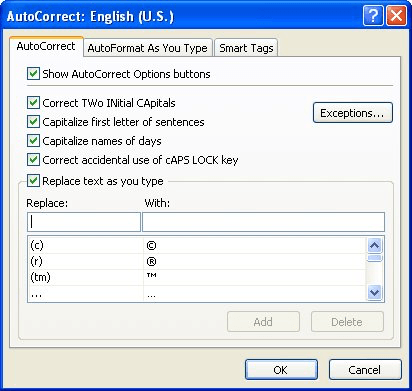
Figure 1. The AutoCorrect tab of the AutoCorrect dialog box.
Now, if I type something in a cell and the first letter is lowercase and the rest of the letters are uppercase, Excel figures that I've got the Caps Lock key selected, and helpfully turns it off. It also corrects the capitalization of my text entry.
ExcelTips is your source for cost-effective Microsoft Excel training. This tip (3304) applies to Microsoft Excel 97, 2000, 2002, and 2003. You can find a version of this tip for the ribbon interface of Excel (Excel 2007 and later) here: Correcting a Capital Mistake.

Dive Deep into Macros! Make Excel do things you thought were impossible, discover techniques you won't find anywhere else, and create powerful automated reports. Bill Jelen and Tracy Syrstad help you instantly visualize information to make it actionable. You’ll find step-by-step instructions, real-world case studies, and 50 workbooks packed with examples and solutions. Check out Microsoft Excel 2019 VBA and Macros today!
At the very heart of editing is the ability to move and copy cells in a worksheet. Understanding the differences between ...
Discover MoreExcel makes it easy to select a group of contiguous cells. However, it also makes it easy to select non-contiguous groups ...
Discover MoreWhen editing a cell, you may want to cancel the edit at some point. There are two ways to do this, both described in this ...
Discover MoreFREE SERVICE: Get tips like this every week in ExcelTips, a free productivity newsletter. Enter your address and click "Subscribe."
There are currently no comments for this tip. (Be the first to leave your comment—just use the simple form above!)
Got a version of Excel that uses the menu interface (Excel 97, Excel 2000, Excel 2002, or Excel 2003)? This site is for you! If you use a later version of Excel, visit our ExcelTips site focusing on the ribbon interface.
FREE SERVICE: Get tips like this every week in ExcelTips, a free productivity newsletter. Enter your address and click "Subscribe."
Copyright © 2026 Sharon Parq Associates, Inc.
 Please Note:
This article is written for users of the following Microsoft Excel versions: 97, 2000, 2002, and 2003. If you are using a later version (Excel 2007 or later), this tip may not work for you. For a version of this tip written specifically for later versions of Excel, click here:
Please Note:
This article is written for users of the following Microsoft Excel versions: 97, 2000, 2002, and 2003. If you are using a later version (Excel 2007 or later), this tip may not work for you. For a version of this tip written specifically for later versions of Excel, click here: 
Comments