
Let's say you work in an office and are preparing a presentation with Excel. You want your presentation to look as good as it can, but the only printer you have is an old low-resolution ink-jet printer. While this output might be acceptable for some purposes, you want your presentation to look real good. You know that Joe, down the hall, has a 1200dpi (dots per inch) PostScript color laser printer (lucky Joe!), and this would give your presentation the punch you need. Unfortunately, Joe's printer is not available through your office network. Short of unplugging his printer and hefting it down to your office, what do you do?
The easiest solution is to print your workbook to disk or to a thumb drive (one of those little memory-based drives) and then take the file down to Joe's computer where you can send it to the printer. While this might seem complicated, it is not really. There is, however, a specific sequence of steps you must follow:
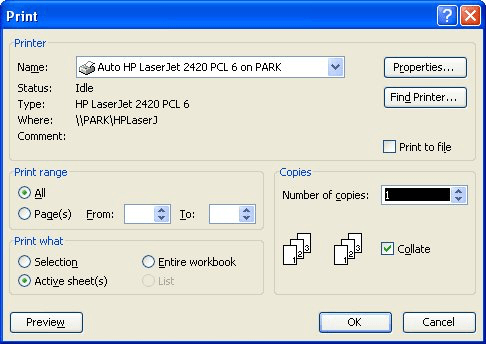
Figure 1. The Print dialog box.
When you print, you will be asked for a filename where you want the printer output stored. Supply a regular filename. Outside of this, printing will appear to progress as normal. When you have finished printing, you can then copy the newly created output file to the disk or thumb drive and walk it down to Joe's machine. If the name of the file is REPORT.OUT , you would enter the following at the command prompt on Joe's machine:
COPY F:REPORT.OUT LPT1:
Just replace the F: with the drive letter of the drive on which your output file is located. (Chances are good it will be something else.) This command sends the report file to the parallel printer port on Joe's machine.
Shortly you will have the output you desire. (If you use this command and it does not seem to work properly on Joe's system, try it by adding a space and a /B to the end of the line.)
ExcelTips is your source for cost-effective Microsoft Excel training. This tip (3240) applies to Microsoft Excel 97, 2000, 2002, and 2003.

Best-Selling VBA Tutorial for Beginners Take your Excel knowledge to the next level. With a little background in VBA programming, you can go well beyond basic spreadsheets and functions. Use macros to reduce errors, save time, and integrate with other Microsoft applications. Fully updated for the latest version of Office 365. Check out Microsoft 365 Excel VBA Programming For Dummies today!
Do you have a worksheet from which you need to print only portions of the data available? There are two ways you can ...
Discover MoreNeed to have your print settings always be a certain way? Tired of resetting the settings after others use the workbook ...
Discover MoreIf you want to save paper on a printout, you might consider printing multiple pages on a single piece of paper. This can ...
Discover MoreFREE SERVICE: Get tips like this every week in ExcelTips, a free productivity newsletter. Enter your address and click "Subscribe."
2024-04-12 14:19:22
Barbie
Couldn't you simply save the file to a flash drive, take it to Joe's computer, open it there, and print normally without going through extra, unfamiliar steps?
Got a version of Excel that uses the menu interface (Excel 97, Excel 2000, Excel 2002, or Excel 2003)? This site is for you! If you use a later version of Excel, visit our ExcelTips site focusing on the ribbon interface.
FREE SERVICE: Get tips like this every week in ExcelTips, a free productivity newsletter. Enter your address and click "Subscribe."
Copyright © 2026 Sharon Parq Associates, Inc.

Comments