
Natasha noted that she used to have a equal sign next to the Formula bar that I could click instead of having to enter the equal sign. Clicking the equal sign would also add an equal sign in front of whatever was already in the cell, without deleting the cell contents. When Natasha's office upgraded to Excel 2002, the equal sign disappeared. She wondered how she could get the equal sign back.
The change you noted was done on purpose by Microsoft. They, without any fanfare, dropped the equal sign from the left of the Formula bar with the introduction of Excel 2002. Instead, Microsoft changed the tool to the Insert Function tool, which you can click on to select how you want to put together a formula using functions. This is obviously not the same as the old equal sign tool, however.
You can, if you desire, add an equal sign tool to a toolbar. Follow these steps:
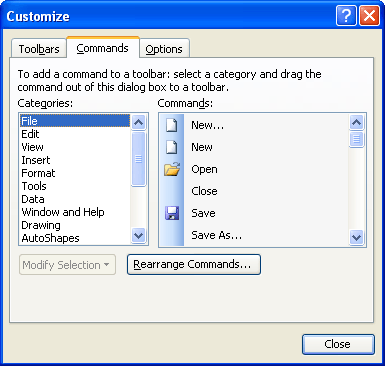
Figure 1. The Commands tab of the Customize dialog box.
The equal sign tool can be used to enter an equal sign at the beginning of the Formula bar. It doesn't completely function like the old tool, as it won't add an equal sign to the beginning of the existing cell contents, and you can't place the tool right next to the Formula bar.
ExcelTips is your source for cost-effective Microsoft Excel training. This tip (3146) applies to Microsoft Excel 97, 2000, 2002, and 2003.

Create Custom Apps with VBA! Discover how to extend the capabilities of Office 365 applications with VBA programming. Written in clear terms and understandable language, the book includes systematic tutorials and contains both intermediate and advanced content for experienced VB developers. Designed to be comprehensive, the book addresses not just one Office application, but the entire Office suite. Check out Mastering VBA for Microsoft Office 365 today!
Ever tried to select a range of cells using the mouse, only to have the cells scroll by so quickly you can't make the ...
Discover MoreWant to easily see the location of named ranges in your worksheet? It's easy; all you need to do is use the familiar Zoom ...
Discover MoreIf you get errors about unfindable files when you first start Excel, it can be frustrating. Here's how to track down and ...
Discover MoreFREE SERVICE: Get tips like this every week in ExcelTips, a free productivity newsletter. Enter your address and click "Subscribe."
There are currently no comments for this tip. (Be the first to leave your comment—just use the simple form above!)
Got a version of Excel that uses the menu interface (Excel 97, Excel 2000, Excel 2002, or Excel 2003)? This site is for you! If you use a later version of Excel, visit our ExcelTips site focusing on the ribbon interface.
FREE SERVICE: Get tips like this every week in ExcelTips, a free productivity newsletter. Enter your address and click "Subscribe."
Copyright © 2026 Sharon Parq Associates, Inc.

Comments