
Working with Lotus 1-2-3 Spreadsheets

Written by Allen Wyatt (last updated December 27, 2025)

You probably already know that Excel will easily open a wide variety of spreadsheets stored in other formats. One that it will open is spreadsheets originally created in Lotus 1-2-3. If you have some old 1-2-3 files and you want to make sure that they are treated, in Excel, according to Lotus 1-2-3 "rules," there are a couple of settings you need to pay attention to. These settings are available from the Options dialog box. (See Figure 1.) Choose Options from the Tools menu to display this dialog box.
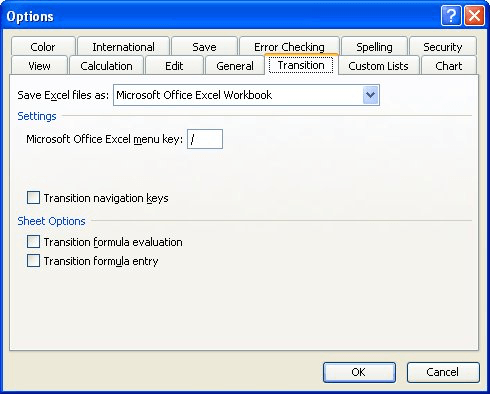
Figure 1. The Transition tab of the Options dialog box.

Make sure the Transition tab is displayed. Notice the two options under Sheet Options; these are what you need to work with:

  • Transition Formula Evaluation. When checked, this option causes Excel to open and evaluate 1-2-3 files without losing or changing information. Based on the formulas in the 1-2-3 file, if this option isn't checked, then you might lose some data or some formulas won't calculate the same in Excel as they would have in Lotus 1-2-3. Specifically, with this option selected Excel evaluates text strings as 0 (zero), Boolean expressions as 0 or 1, and database criteria according to the rules used in Lotus 1-2-3.
  • Transition Formula Entry. If this check box is selected, then formulas entered in Lotus 1-2-3 version 2.2 syntax are converted to Excel syntax. This option should not be selected if you don't plan on saving the spreadsheet in Excel format.

Make your settings, as desired, then close the Options dialog box. Open the Lotus 1-2-3 spreadsheet and Excel should process the file according to the settings you made.

ExcelTips is your source for cost-effective Microsoft Excel training. This tip (3057) applies to Microsoft Excel 97, 2000, 2002, and 2003.

Author Bio

Allen Wyatt

With more than 50 non-fiction books and numerous magazine articles to his credit, Allen Wyatt is an internationally recognized author. He is president of Sharon Parq Associates, a computer and publishing services company. ...

MORE FROM ALLEN

Removing Errant Buttons

Got some toolbar buttons that are rather stubborn? Getting rid of buttons that are installed by an external program can ...

Discover More

Fitting Your Printout on a Page

Tired of wasting paper when you print a worksheet? You can scale Excel's output so that it fits only the number of pages ...

Discover More

Viewing More than Two Places in a Worksheet

If your worksheet gets big enough, it is easy to spend a lot of time navigating back and forth between different areas. ...

Discover More

Professional Development Guidance! Four world-class developers offer start-to-finish guidance for building powerful, robust, and secure applications with Excel. The authors show how to consistently make the right design decisions and make the most of Excel's powerful features. Check out Professional Excel Development today!

More ExcelTips (menu)

Stopping Excel from Converting UNC Paths to Mapped Drives

Did you know that if you create a link that uses a UNC path, Excel could rewrite that path to something entirely ...

Discover More

Jumping Around Folders

When you open a workbook in Excel, the Open dialog box always starts within the folder in which you were last working. ...

Discover More

Inconsistent Output for Empty Columns in a CSV File

When you create a CSV file in Excel, the information stored in the file may not contain all the fields that you think it ...

Discover More
Subscribe

FREE SERVICE: Get tips like this every week in ExcelTips, a free productivity newsletter. Enter your address and click "Subscribe."

View most recent newsletter.

Comments

If you would like to add an image to your comment (not an avatar, but an image to help in making the point of your comment), include the characters [{fig}] (all 7 characters, in the sequence shown) in your comment text. You’ll be prompted to upload your image when you submit the comment. Maximum image size is 6Mpixels. Images larger than 600px wide or 1000px tall will be reduced. Up to three images may be included in a comment. All images are subject to review. Commenting privileges may be curtailed if inappropriate images are posted.

What is four more than 7?

There are currently no comments for this tip. (Be the first to leave your comment—just use the simple form above!)


This Site

Got a version of Excel that uses the menu interface (Excel 97, Excel 2000, Excel 2002, or Excel 2003)? This site is for you! If you use a later version of Excel, visit our ExcelTips site focusing on the ribbon interface.

Newest Tips
Subscribe

FREE SERVICE: Get tips like this every week in ExcelTips, a free productivity newsletter. Enter your address and click "Subscribe."

(Your e-mail address is not shared with anyone, ever.)

View the most recent newsletter.