
Deleting a Toolbar

Written by Allen Wyatt (last updated August 17, 2024)

Excel allows you to create your own custom toolbars, as described in other issues of ExcelTips. After your toolbar has outlived its usefulness, you may want to delete it. You cannot delete the built-in toolbars used by Excel, but you can delete ones you previously created. Follow these steps:
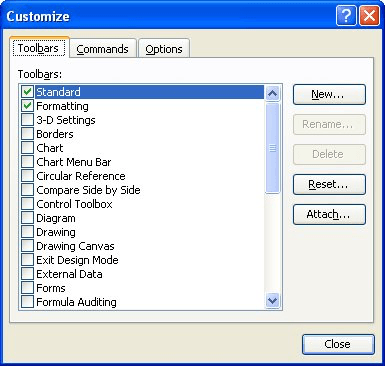
  1. Choose Customize from the Tools menu. Excel displays the Customize dialog box.
  2. Make sure the Toolbars tab is selected. (See Figure 1.)
  3. Figure 1. The Toolbars tab of the Customize dialog box.

  4. From the list of available toolbars, select the toolbar you want to delete.
  5. Click on the Delete button.
  6. You are asked to confirm your request to delete the toolbar. Click on OK to continue. The toolbar is removed.
  7. Repeat steps 3 through 5 for any other toolbars you want to delete.
  8. Click on Close.

ExcelTips is your source for cost-effective Microsoft Excel training. This tip (2723) applies to Microsoft Excel 97, 2000, 2002, and 2003.

Author Bio

Allen Wyatt

With more than 50 non-fiction books and numerous magazine articles to his credit, Allen Wyatt is an internationally recognized author. He is president of Sharon Parq Associates, a computer and publishing services company. ...

MORE FROM ALLEN

Ignoring Accented Characters in Searches

When writing in non-English languages, there can be many variations of accented characters that are used in a word. You ...

Discover More

Controlling Window Size when Opening Additional Workbooks

When you open multiple workbooks, the way in which Excel sizes them is not the best for your needs. This tip looks at a ...

Discover More

Using the CONCATENATE Worksheet Function

The process of combining string (text) values to make a new string is called concatenation. Excel provides the ...

Discover More

Dive Deep into Macros! Make Excel do things you thought were impossible, discover techniques you won't find anywhere else, and create powerful automated reports. Bill Jelen and Tracy Syrstad help you instantly visualize information to make it actionable. You’ll find step-by-step instructions, real-world case studies, and 50 workbooks packed with examples and solutions. Check out Microsoft Excel 2019 VBA and Macros today!

More ExcelTips (menu)

Simplifying the Font List

Excel normally displays the font list on the toolbar or using the very fonts it is displaying. Here's how to change that ...

Discover More

Displaying Toolbars

Toolbars allow you to access common tasks quickly and easily. Excel provides a wide variety of toolbars, and you can even ...

Discover More

Large Toolbar Buttons

Do you wish that the buttons on your Excel toolbars were easier to see and use? The answer could be to turn on the large ...

Discover More
Subscribe

FREE SERVICE: Get tips like this every week in ExcelTips, a free productivity newsletter. Enter your address and click "Subscribe."

View most recent newsletter.

Comments

If you would like to add an image to your comment (not an avatar, but an image to help in making the point of your comment), include the characters [{fig}] (all 7 characters, in the sequence shown) in your comment text. You’ll be prompted to upload your image when you submit the comment. Maximum image size is 6Mpixels. Images larger than 600px wide or 1000px tall will be reduced. Up to three images may be included in a comment. All images are subject to review. Commenting privileges may be curtailed if inappropriate images are posted.

What is eight more than 6?

There are currently no comments for this tip. (Be the first to leave your comment—just use the simple form above!)


This Site

Got a version of Excel that uses the menu interface (Excel 97, Excel 2000, Excel 2002, or Excel 2003)? This site is for you! If you use a later version of Excel, visit our ExcelTips site focusing on the ribbon interface.

Newest Tips
Subscribe

FREE SERVICE: Get tips like this every week in ExcelTips, a free productivity newsletter. Enter your address and click "Subscribe."

(Your e-mail address is not shared with anyone, ever.)

View the most recent newsletter.