
Everyone knows that you can delete cells in an Excel spreadsheet by choosing Delete from the Edit menu. If you are typing away, however, it can be a pain to access the Delete dialog box in this manner. A quick way to accomplish the same task is to simply press Ctrl+- (the minus key, either on the regular keyboard or the numeric keypad). This pops up the Delete dialog box right away, allowing you to save a couple of mouse clicks. (See Figure 1.)
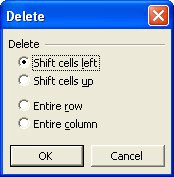
Figure 1. The Delete dialog box
ExcelTips is your source for cost-effective Microsoft Excel training. This tip (2649) applies to Microsoft Excel 97, 2000, 2002, and 2003.

Program Successfully in Excel! This guide will provide you with all the information you need to automate any task in Excel and save time and effort. Learn how to extend Excel's functionality with VBA to create solutions not possible with the standard features. Includes latest information for Excel 2024 and Microsoft 365. Check out Mastering Excel VBA Programming today!
Deleting rows or columns is easy when you use the shortcut described in this tip. Just select the rows or columns and ...
Discover MoreIf you need to often delete duplicate items from a list, then you'll love the macro presented in this tip. It makes quick ...
Discover MoreToo much data in your worksheet? Does too much of that data duplicate other data? Here's how to get rid of the duplicates ...
Discover MoreFREE SERVICE: Get tips like this every week in ExcelTips, a free productivity newsletter. Enter your address and click "Subscribe."
There are currently no comments for this tip. (Be the first to leave your comment—just use the simple form above!)
Got a version of Excel that uses the menu interface (Excel 97, Excel 2000, Excel 2002, or Excel 2003)? This site is for you! If you use a later version of Excel, visit our ExcelTips site focusing on the ribbon interface.
FREE SERVICE: Get tips like this every week in ExcelTips, a free productivity newsletter. Enter your address and click "Subscribe."
Copyright © 2026 Sharon Parq Associates, Inc.

Comments