
Please Note: This article is written for users of the following Microsoft Excel versions: 97, 2000, 2002, and 2003. If you are using a later version (Excel 2007 or later), this tip may not work for you. For a version of this tip written specifically for later versions of Excel, click here: Selecting a Paper Source.
Excel supports any printer supported by Windows. This is because Excel uses the features offered by Windows to print documents. Many of the features associated with formatting your document and printing are related to the type of printer you have installed and selected. For instance, some laser printers have different bins for different paper. Windows (and thus Excel) can instruct the printer to select paper from any of the available paper bins.
If your printer supports multiple paper sources, and you want to change the paper source used for your document (for instance, you have a bin that contains legal-sized paper and you want to print on it), you should follow these steps:
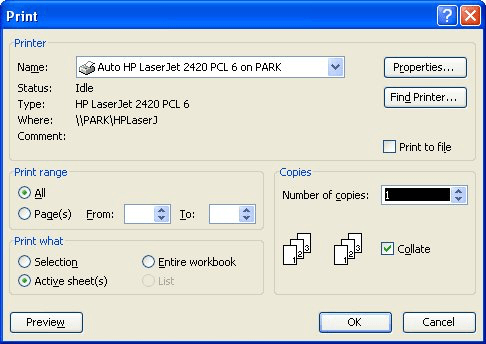
Figure 1. The Print dialog box.
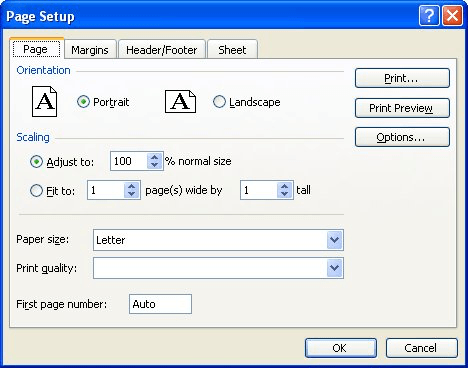
Figure 2. The Page tab of the Page Setup dialog box.
If, in step 8, you don't see different options for paper sources, then your printer (or printer driver) does not support multiple sources.
ExcelTips is your source for cost-effective Microsoft Excel training. This tip (2640) applies to Microsoft Excel 97, 2000, 2002, and 2003. You can find a version of this tip for the ribbon interface of Excel (Excel 2007 and later) here: Selecting a Paper Source.
Dive Deep into Macros! Make Excel do things you thought were impossible, discover techniques you won't find anywhere else, and create powerful automated reports. Bill Jelen and Tracy Syrstad help you instantly visualize information to make it actionable. You’ll find step-by-step instructions, real-world case studies, and 50 workbooks packed with examples and solutions. Check out Microsoft Excel 2019 VBA and Macros today!
On-screen Excel displays row numbers that help you easily see what is in each row. If you want to print these row ...
Discover MoreThe Print Preview feature can be a great way to see how something will look on paper without actually using any paper. ...
Discover MoreNeed to have your print settings always be a certain way? Tired of resetting the settings after others use the workbook ...
Discover MoreFREE SERVICE: Get tips like this every week in ExcelTips, a free productivity newsletter. Enter your address and click "Subscribe."
There are currently no comments for this tip. (Be the first to leave your comment—just use the simple form above!)
Got a version of Excel that uses the menu interface (Excel 97, Excel 2000, Excel 2002, or Excel 2003)? This site is for you! If you use a later version of Excel, visit our ExcelTips site focusing on the ribbon interface.
FREE SERVICE: Get tips like this every week in ExcelTips, a free productivity newsletter. Enter your address and click "Subscribe."
Copyright © 2026 Sharon Parq Associates, Inc.
 Please Note:
This article is written for users of the following Microsoft Excel versions: 97, 2000, 2002, and 2003. If you are using a later version (Excel 2007 or later), this tip may not work for you. For a version of this tip written specifically for later versions of Excel, click here:
Please Note:
This article is written for users of the following Microsoft Excel versions: 97, 2000, 2002, and 2003. If you are using a later version (Excel 2007 or later), this tip may not work for you. For a version of this tip written specifically for later versions of Excel, click here: 
Comments