
Displaying Zeros

Written by Allen Wyatt (last updated June 19, 2021)

2

By default, Excel displays your information pretty much as you enter it. This includes zero values. If you enter a zero, the zero shows on the worksheet. If you don't enter a value in a cell, then Excel shows a blank in that area. If the result of a formula is zero, then that result typically shows, as well. There may be times, however, when you don't want zero values to show. To control the display of zero values, follow these steps:
  1. Choose Options from the Tools menu. Excel displays the Options dialog box.
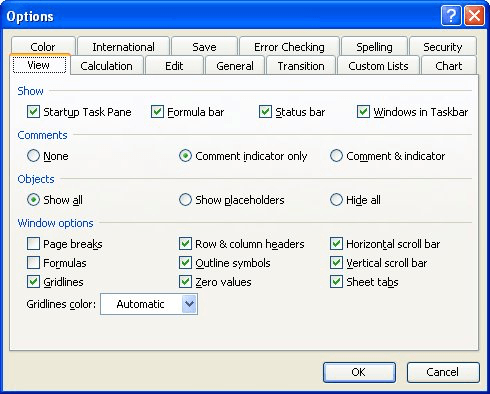
  2. Make sure the View tab is selected. (See Figure 1.)
  3. Figure 1. The View tab of the Options dialog box.

  4. In the Window Options area, note the Zero Values check box. If it is selected, then zero values are displayed. If it is cleared, then zero values are not displayed.
  5. Click on OK.
You should note that the setting of the Zero Values check box affects not just what you see on the screen, but how information is printed by Excel, as well.

ExcelTips is your source for cost-effective Microsoft Excel training. This tip (2629) applies to Microsoft Excel 97, 2000, 2002, and 2003.
Author Bio

Allen Wyatt

With more than 50 non-fiction books and numerous magazine articles to his credit, Allen Wyatt is an internationally recognized author. He is president of Sharon Parq Associates, a computer and publishing services company. ...

MORE FROM ALLEN

Rotating Graphics Around a Different Center Point

You use the rotation handle in Word 2002 and Word 2003 to, well, rotate graphics around a center point. But if you hold ...

Discover More

Very Slow Document Opening with Excel Links

When you link parts of your document to other sources (such as an Excel workbook), you can make opening your document ...

Discover More

Highlighting an Unchanging Value

If you need to determine whether a value, such as an average, has not changed in the previous seven days, the task can be ...

Discover More

Solve Real Business Problems Master business modeling and analysis techniques with Excel and transform data into bottom-line results. This hands-on, scenario-focused guide shows you how to use the latest Excel tools to integrate data from multiple tables. Check out Microsoft Excel Data Analysis and Business Modeling today!

More ExcelTips (menu)

Understanding Number Formatting Codes

When creating custom formats, you can employ a wide range of codes to define your formatting pattern. This tip focuses on ...

Discover More

Custom Formats for Scientific Notation

Excel allows you to format your numeric values in a wide variety of ways. One such formatting option is to display ...

Discover More

Copying Formatting

Excel provides a couple of different ways to copy formatting from one cell to another. Perhaps the easiest way is to use ...

Discover More
Subscribe

FREE SERVICE: Get tips like this every week in ExcelTips, a free productivity newsletter. Enter your address and click "Subscribe."

View most recent newsletter.

Comments

If you would like to add an image to your comment (not an avatar, but an image to help in making the point of your comment), include the characters [{fig}] (all 7 characters, in the sequence shown) in your comment text. You’ll be prompted to upload your image when you submit the comment. Maximum image size is 6Mpixels. Images larger than 600px wide or 1000px tall will be reduced. Up to three images may be included in a comment. All images are subject to review. Commenting privileges may be curtailed if inappropriate images are posted.

What is four more than 7?

2024-09-13 14:32:17

AMRV

We often work with insurance companies and their claim numbers sometimes start with "0". Excel was removing the zero which caused problems. There are a couple of ways to resolve that.nn1. Set the cell "number" to text (my preference).n2. Add a space or a character (such as an apostrophe) before the number.


2021-06-19 18:00:08

Rohn S, MVP 2012-2018

Time to create a Ribbon equivalentnnRibbon: File menu > Options command > Advanced option > Display Options for this Workbook section > Show Zero in in cells that have zero valuen.


This Site

Got a version of Excel that uses the menu interface (Excel 97, Excel 2000, Excel 2002, or Excel 2003)? This site is for you! If you use a later version of Excel, visit our ExcelTips site focusing on the ribbon interface.

Newest Tips
Subscribe

FREE SERVICE: Get tips like this every week in ExcelTips, a free productivity newsletter. Enter your address and click "Subscribe."

(Your e-mail address is not shared with anyone, ever.)

View the most recent newsletter.