
Please Note: This article is written for users of the following Microsoft Excel versions: 97, 2000, 2002, and 2003. If you are using a later version (Excel 2007 or later), this tip may not work for you. For a version of this tip written specifically for later versions of Excel, click here: Turning Headers On and Off.
You already know that the headers in a worksheet come in handy. This is the gray area, at the left and top of a worksheet, which indicates the row and column label used by Excel. You click in the header area if you want to select either a row or header. You also know that you can adjust the height or width or rows or columns by using the row and column header area.
Even though this area is very useful, there may be times when you do not want it displayed. For instance, if you are using Excel to create an on-screen form, then the header areas may be distracting to the intended users of the form.
To control whether headers are turned on or off, follow these steps:
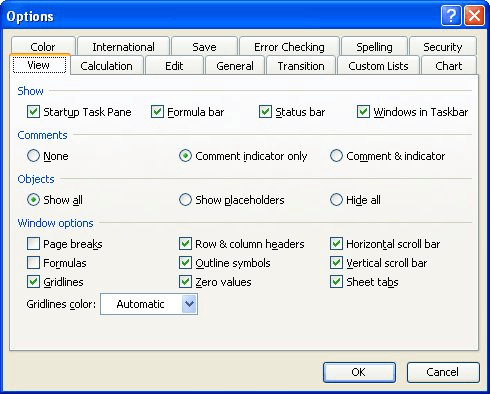
Figure 1. The View tab of the Options dialog box.
Notice that Excel does not allow you to control the display of row and column headers individually—they are either both on or both off.
ExcelTips is your source for cost-effective Microsoft Excel training. This tip (2074) applies to Microsoft Excel 97, 2000, 2002, and 2003. You can find a version of this tip for the ribbon interface of Excel (Excel 2007 and later) here: Turning Headers On and Off.

Excel Smarts for Beginners! Featuring the friendly and trusted For Dummies style, this popular guide shows beginners how to get up and running with Excel while also helping more experienced users get comfortable with the newest features. Check out Excel 2019 For Dummies today!
Want to print different headers or footers on different parts of your worksheet? Excel has no inherent way to do this, ...
Discover MoreWhen preparing a worksheet for printing, you may want to include in the header or footer the last date the workbook was ...
Discover MoreWhen adding headers or footers to your worksheets, you may want to include the date that the workbook was last edited. ...
Discover MoreFREE SERVICE: Get tips like this every week in ExcelTips, a free productivity newsletter. Enter your address and click "Subscribe."
There are currently no comments for this tip. (Be the first to leave your comment—just use the simple form above!)
Got a version of Excel that uses the menu interface (Excel 97, Excel 2000, Excel 2002, or Excel 2003)? This site is for you! If you use a later version of Excel, visit our ExcelTips site focusing on the ribbon interface.
FREE SERVICE: Get tips like this every week in ExcelTips, a free productivity newsletter. Enter your address and click "Subscribe."
Copyright © 2026 Sharon Parq Associates, Inc.
 Please Note:
This article is written for users of the following Microsoft Excel versions: 97, 2000, 2002, and 2003. If you are using a later version (Excel 2007 or later), this tip may not work for you. For a version of this tip written specifically for later versions of Excel, click here:
Please Note:
This article is written for users of the following Microsoft Excel versions: 97, 2000, 2002, and 2003. If you are using a later version (Excel 2007 or later), this tip may not work for you. For a version of this tip written specifically for later versions of Excel, click here: 
Comments